How to Screen Cast to TV: A Step-by-Step Guide
Learn how to screen cast to TV using TVBuddy. Follow easy steps to cast photos, videos, and music from Android or iPhone to a compatible smart TV.
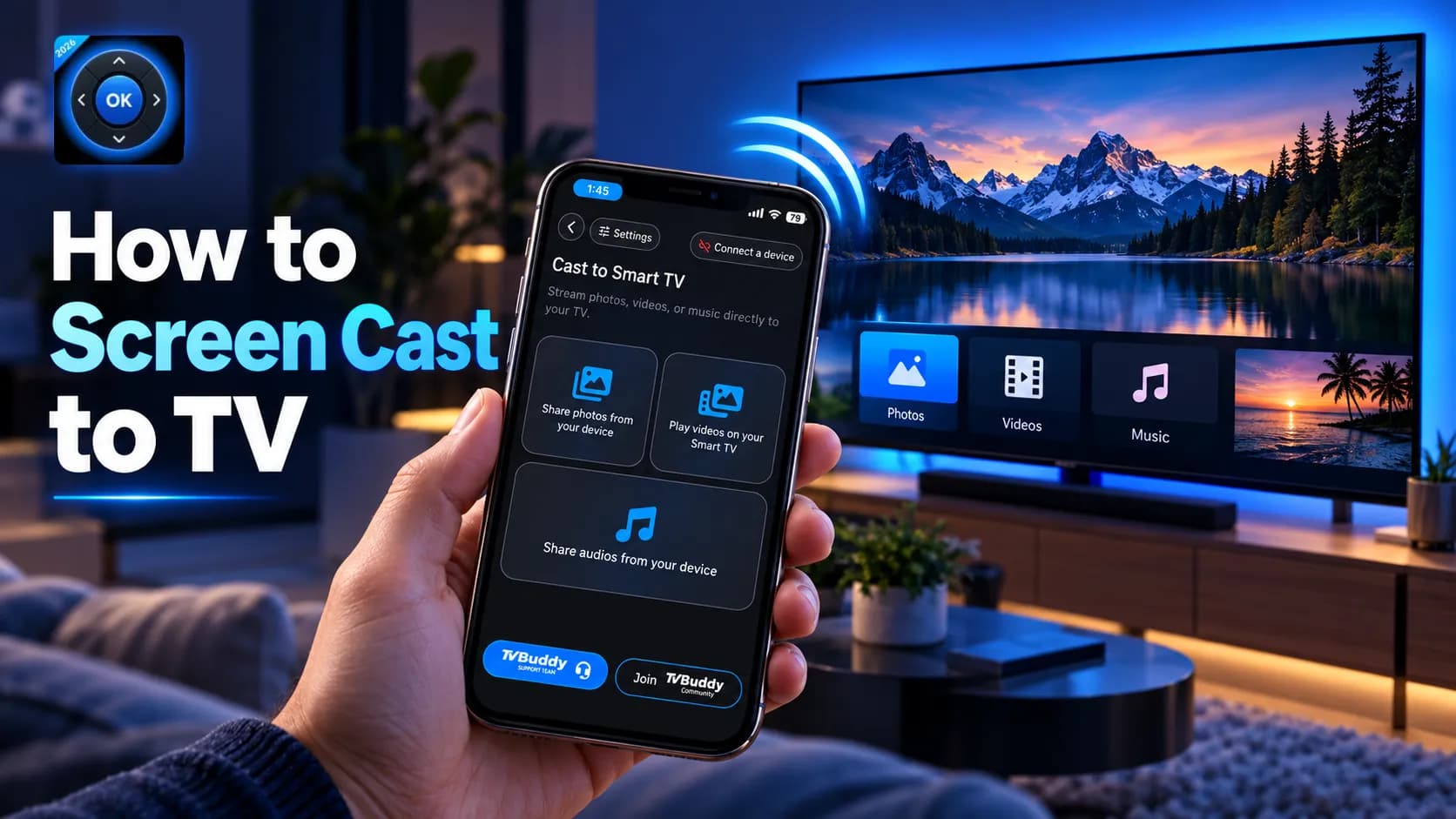
Want to share photos, watch personal videos, or play music on a bigger screen? Learning how to screen cast to TV makes it easier to enjoy content from your smartphone on a compatible smart television.
With the TVBuddy Universal TV Remote App, you can cast supported media from Android or iPhone while accessing convenient TV remote controls — all from one app.
This guide explains how screen casting works, how to connect your phone to a smart TV, and what to do when casting isn't working.
How to Screen Cast to TV: Quick Answer
To screen cast to TV using TVBuddy, connect your smartphone and compatible smart TV to the same Wi-Fi network. Open TVBuddy, select your television, tap Cast, and choose the photos, videos, or music you want to display.
TVBuddy combines personal media casting with remote-control features, allowing you to share supported content without needing a separate casting device.
What Is Screen Casting and How Does It Work?
Screen casting is a way to send content from a smartphone, tablet, or another device to a compatible television.
Instead of watching everything on your phone's smaller display, you can enjoy supported content on your TV.
Common uses include:
- Photos: Share vacation pictures and family memories.
- Videos: Watch personal recordings on a larger screen.
- Music: Play supported audio files through your TV speakers.
Some technologies also let you cast your screen in its entirety, rather than select individual files. These are different capabilities, and support depends on your phone and television.
TVBuddy focuses on casting supported personal media and providing compatible smart TV controls.
How to Screen Cast to TV Using TVBuddy
TVBuddy offers a straightforward way to connect your smartphone and cast media wirelessly.
Step 1: Connect Your Phone and TV to Wi-Fi
Turn on your smart TV and connect it to your Wi-Fi network.
Connect your smartphone to the same local network. Avoid guest networks that may prevent devices from communicating.
Step 2: Download and Open TVBuddy
Install the TVBuddy app on your Android phone or iPhone.
Launch the app and allow the necessary permissions for discovering nearby devices and accessing selected media.
Step 3: Select Your Smart TV
TVBuddy searches for compatible televisions connected to your network.
Choose your TV from the available device list. Some television models may require you to approve the connection on the TV screen.
Step 4: Tap the Cast Button
Once connected, open the Cast feature in TVBuddy.
Choose the type of content you want to share:
- Photos
- Videos
- Music
Step 5: Select Your Media
Browse your available media and select a supported file.
Follow the on-screen instructions to begin playback on your television.
Step 6: Enjoy Your Content
Your selected media can now be enjoyed on the larger display.
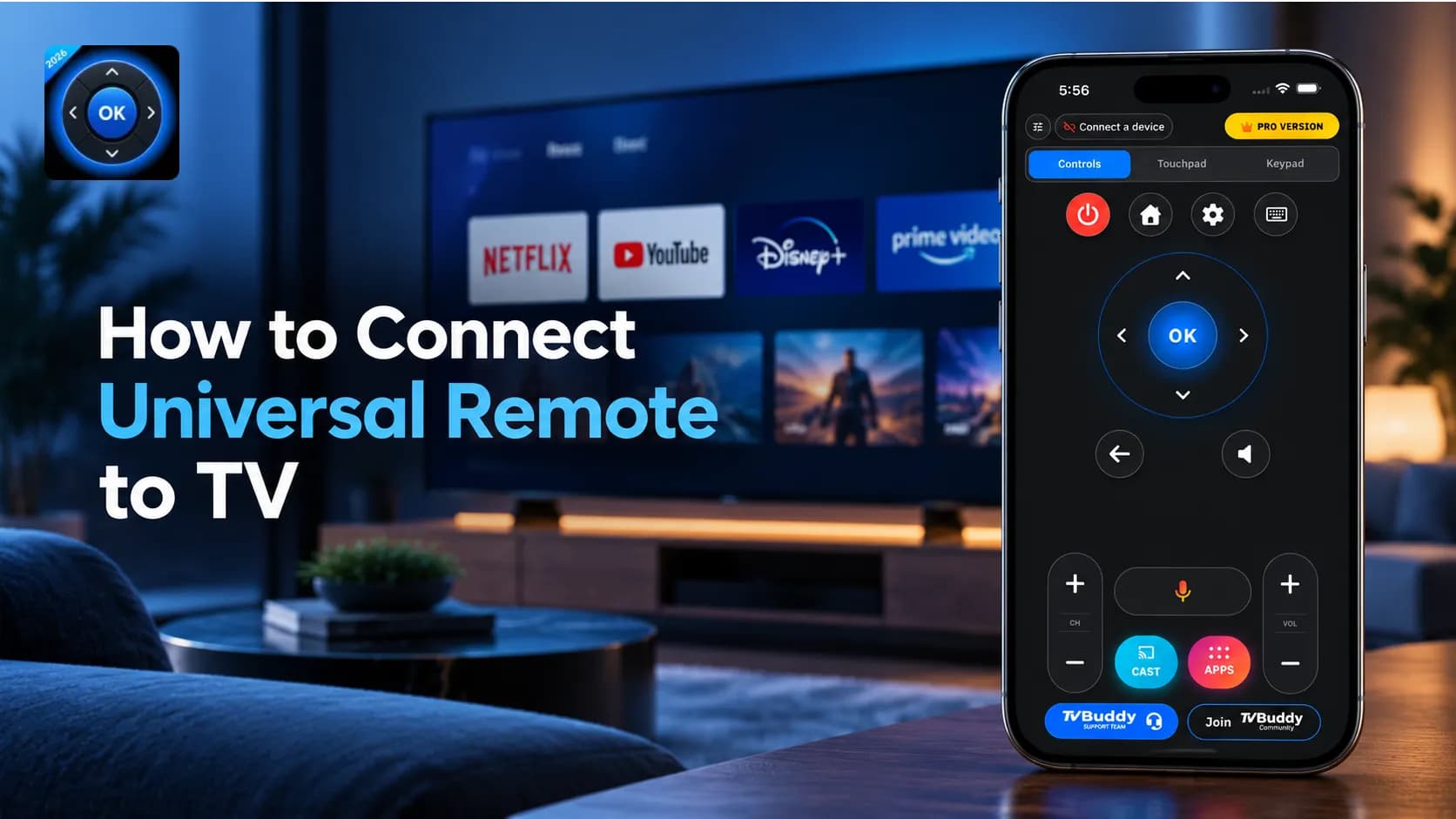
You can also use TVBuddy's supported remote functions for navigation and available playback controls.
Tip: If a particular file doesn't play, try another supported format. Media compatibility varies by TV model and operating system.
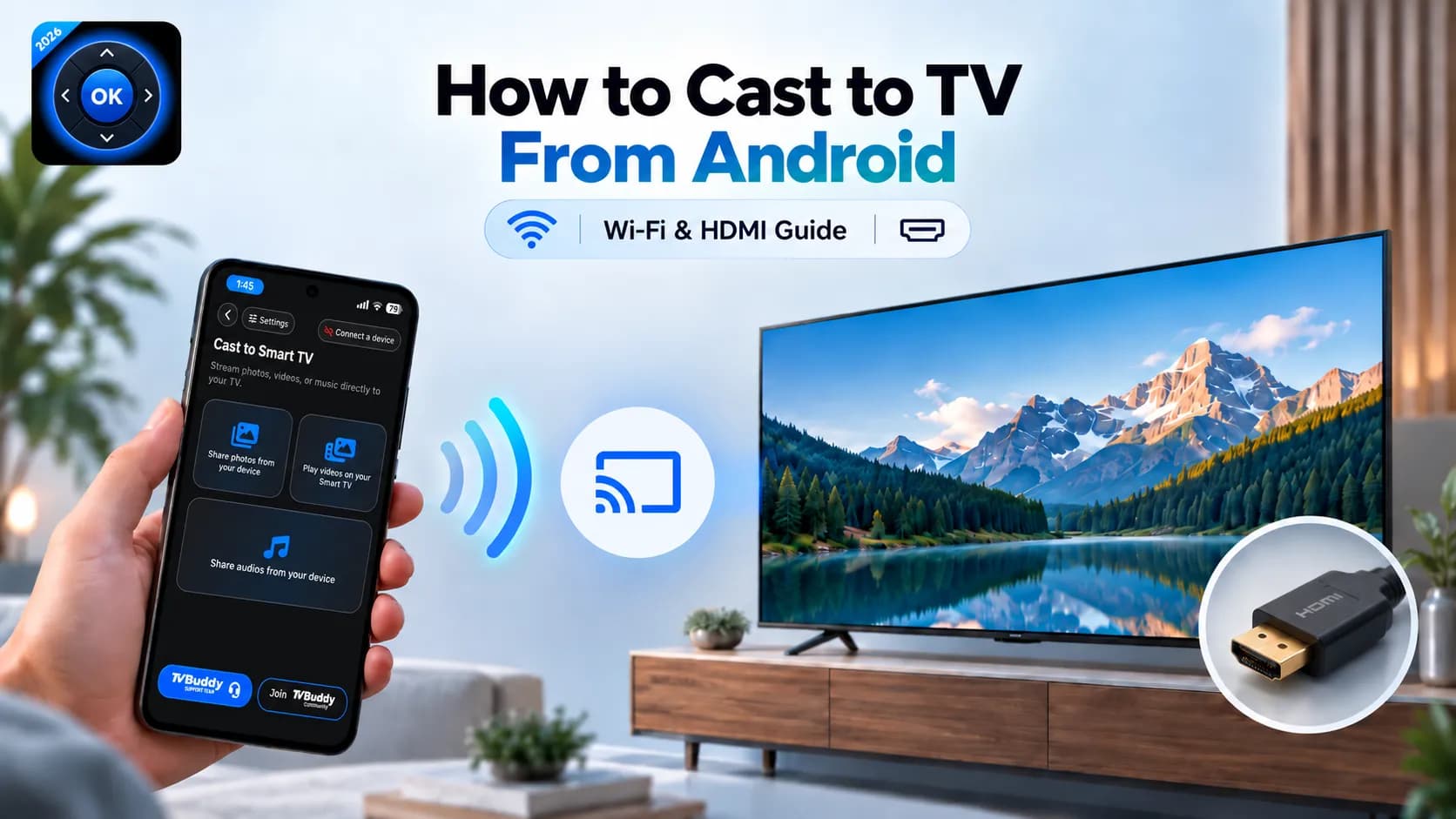
How to Screen Cast Android to TV
If you use an Android smartphone, the TVBuddy setup process is simple.
- Install TVBuddy from Google Play.
- Connect your Android phone and television to the same Wi-Fi network.
- Open the application and select your compatible TV.
- Tap Cast and choose your media.
- Start playing the selected content.
You can use these steps on compatible Samsung Galaxy, Google Pixel, Xiaomi, OnePlus, and other Android phones.
If you want to display your entire Android interface rather than individual media files, check whether your phone and TV support a built-in screen-sharing feature. This is separate from TVBuddy's personal media casting workflow. Our guide on how to cast to TV from Android covers built-in screen mirroring and HDMI options.
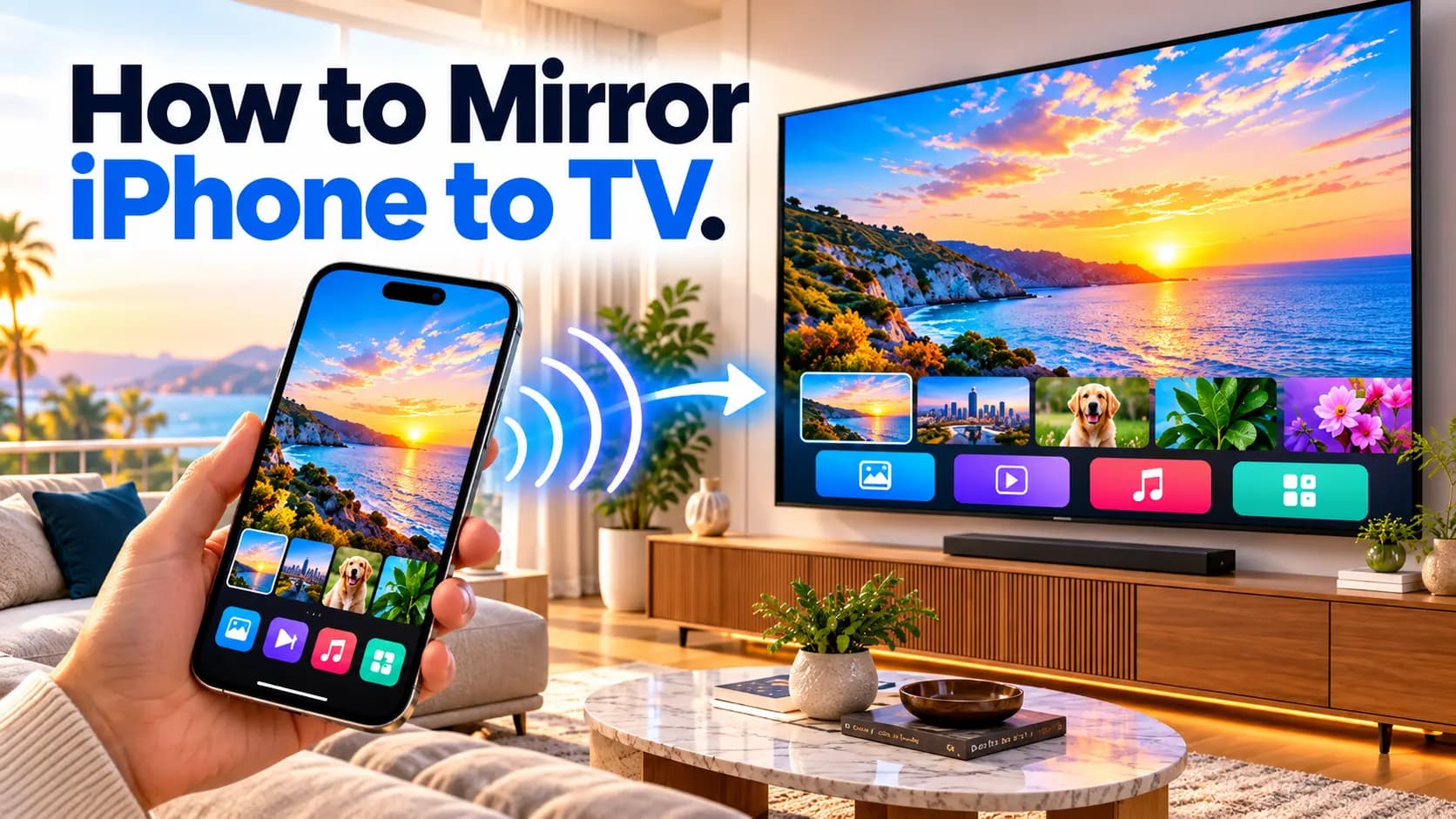
Can You Screen Cast From iPhone to TV?
Yes. TVBuddy is also available for iPhone and supports casting selected personal media to compatible smart TVs.
Connect your iPhone and television to the same Wi-Fi network, open TVBuddy, select your TV, and use the Cast feature to share supported photos, videos, or music.
You may need to allow local network and photo library permissions when prompted.
Which Smart TVs Support TVBuddy Screen Casting?
TVBuddy supports connections to selected television models across several major platforms.
| TV Brand | Supported Platforms |
|---|---|
| Samsung | Compatible Tizen TVs |
| LG | Compatible webOS TVs |
| Roku | Selected Roku TVs and devices |
| Sony | Selected Android TV and Google TV models |
| TCL | Selected Android TV and Google TV models |
| Hisense | Selected VIDAA and Google TV models |
| Amazon Fire TV | Compatible Fire TV devices |
Additional brands and platforms may also be supported.
Important: Remote-control compatibility does not guarantee that every casting feature will work on every TV. Check your specific television model before relying on a particular function.
Is TVBuddy a Free Screen Cast App?
TVBuddy is free to download and includes basic remote-control features and media casting on compatible devices.
You can use supported casting features to share personal photos, videos, and music.
Optional TVBuddy Pro upgrades provide additional remote functions, including compatible touchpad controls, keypad input, and other advanced features.
This makes TVBuddy a practical starting point for anyone looking for a free screen cast app with additional television controls.
Why Is Screen Casting Not Working?
If your TV isn't appearing or your media won't play, try these troubleshooting steps.
- Check Wi-Fi: Ensure your phone and TV are on the same local network.
- Restart your devices: Restart both your smartphone and television.
- Disable VPN: A VPN may interfere with local device discovery.
- Update software: Install available updates for TVBuddy, your phone, and your TV.
- Check compatibility: Confirm that your television supports the selected casting feature and media format.
- Review permissions: Allow the required local network and media access permissions.
If you are also having trouble controlling your television, read our guide on how to fix a TV remote that isn't working.
Final Thoughts: Start Screen Casting With TVBuddy
Screen casting makes it easier to enjoy personal media on a bigger display without transferring files to a separate device.
TVBuddy brings supported media casting and smart TV remote controls into one convenient application for Android and iPhone users.
Whether you want to share family photos, enjoy personal videos, or play music through your television, TVBuddy helps you connect your phone to a compatible smart TV.
Ready to get started? Try TVBuddy for free.
Looking for more helpful tutorials? Explore our TVBuddy Guides.
Frequently asked questions
Quick answers to common questions.