How to Cast to TV From Android: 3 Easy Methods
Learn how to cast to TV from Android using TVBuddy, an HDMI cable, or wireless screen mirroring. Follow easy steps to connect your phone to your TV.
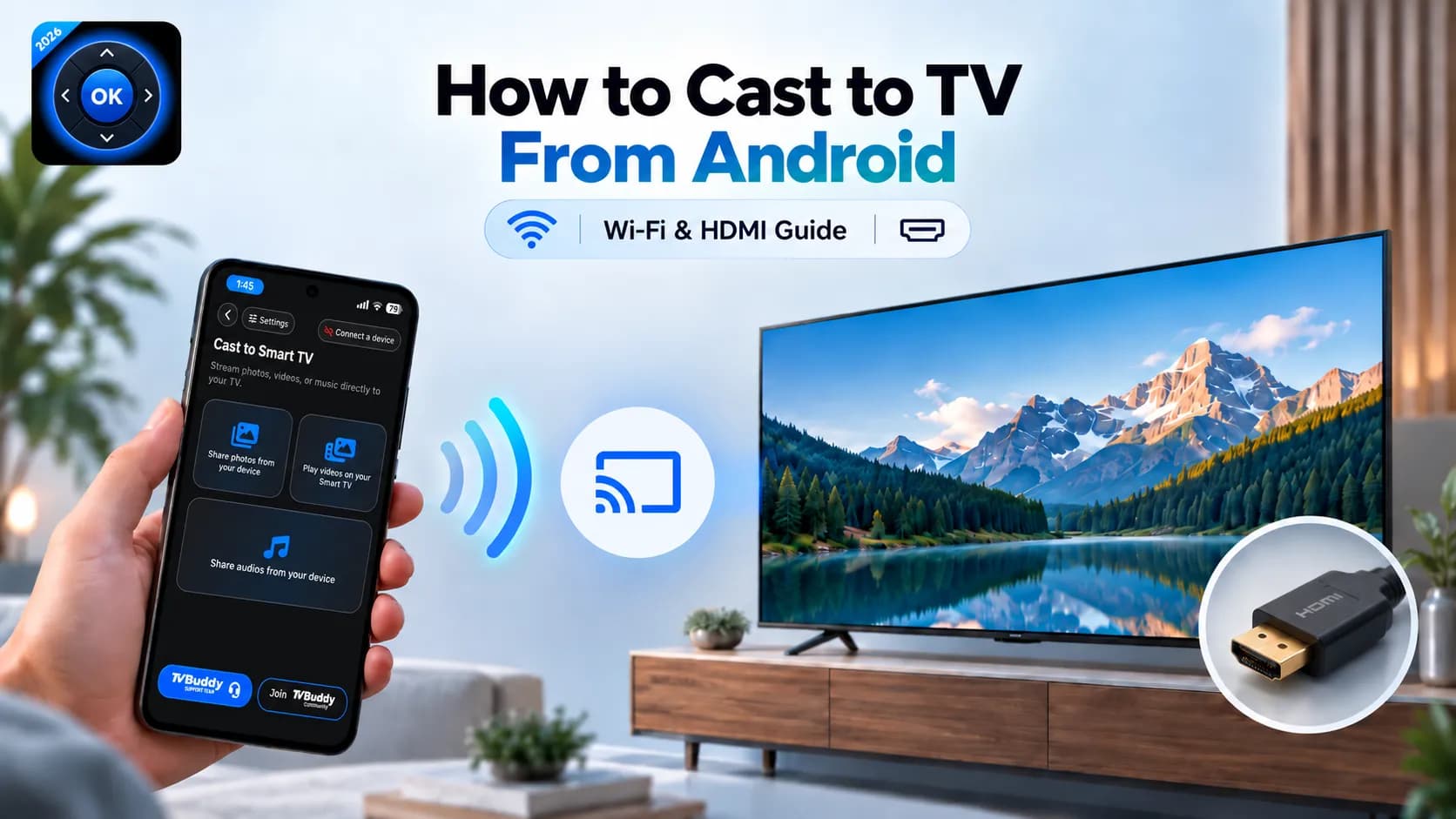
Want to watch videos, share photos, or play music on a bigger screen? Learning how to cast to TV from Android lets you enjoy content from your smartphone on a compatible smart television.
There are several ways to connect your phone with a TV, including wireless casting apps, HDMI cables, and built-in screen mirroring.
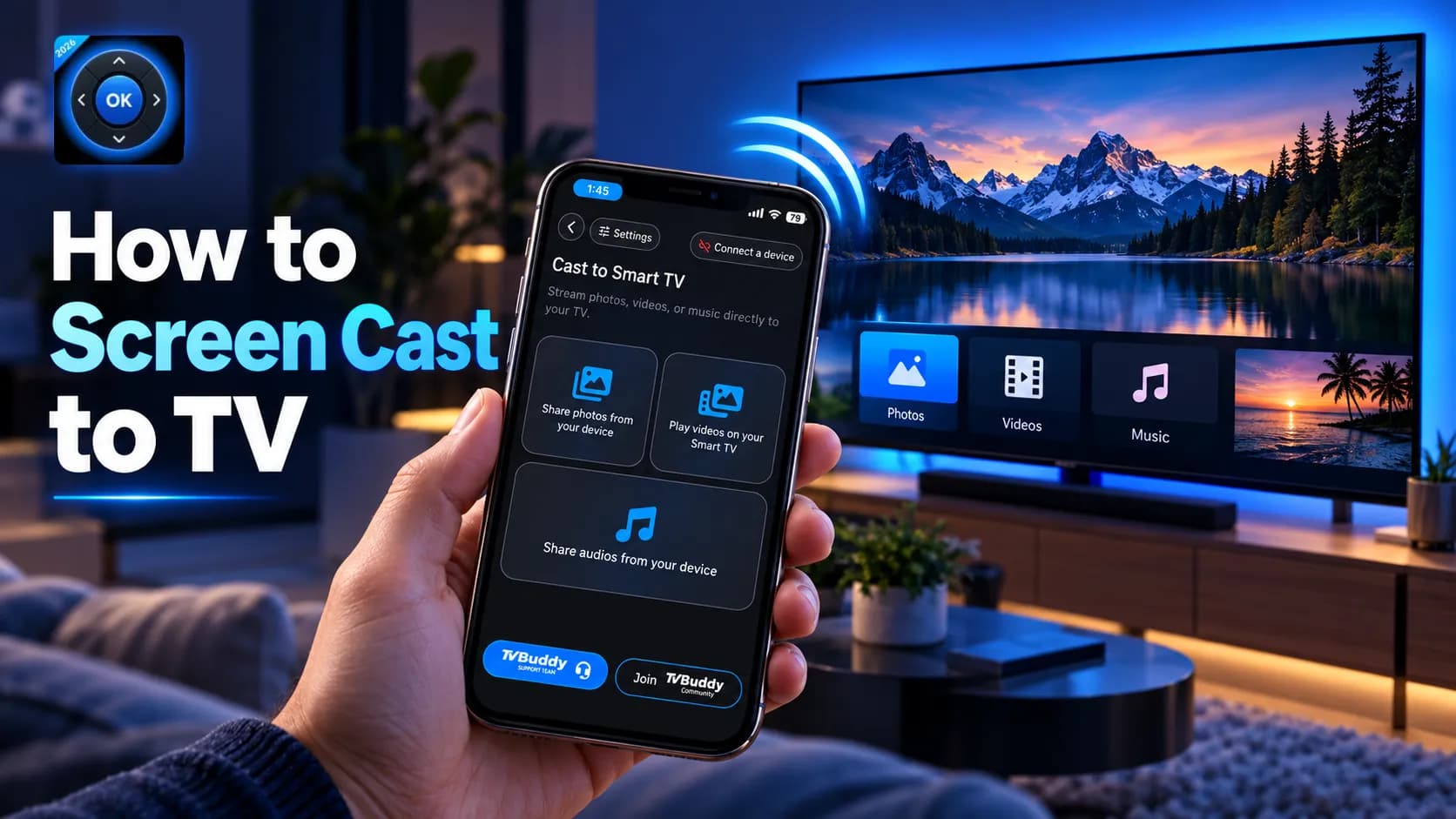
One convenient option is TVBuddy, which lets you cast supported personal media and control compatible smart TVs from your smartphone.
In this guide, we'll explain three practical methods, help you choose the right connection, and show you how to fix common casting problems.
How to Cast to TV From Android: Quick Answer
To cast to TV from Android, connect your phone and compatible smart TV to the same Wi-Fi network, open TVBuddy, select your television, and use the Cast feature to share supported photos, videos, or music.
You can also connect your Android phone using a USB-C-to-HDMI adapter if your device supports video output, or you can use built-in screen mirroring on compatible devices.
The best method depends on your smartphone, television, and whether you prefer a wireless or wired connection.
Method 1: Cast to TV Wirelessly Using TVBuddy
If you want to cast media from your phone while accessing smart TV remote controls, the TVBuddy Universal TV Remote App combines both functions in one application.
TVBuddy supports selected Samsung, LG, Roku, Android TV, Google TV, TCL, Sony, Hisense, and other compatible televisions.
Step 1: Connect Both Devices to Wi-Fi
Turn on your smart TV and connect it to your Wi-Fi network.
Next, connect your Android smartphone to the same network. Make sure your television is fully powered on, rather than in standby mode.
Step 2: Download TVBuddy
Install TVBuddy on your Android smartphone from Google Play.
Open the app and grant the necessary permissions for device discovery and media access.
Step 3: Connect Your Phone to the TV
TVBuddy searches for supported smart TVs on your network.
Select your television from the available devices. Depending on your TV model, you may need to approve a connection request on the television screen.
Step 4: Cast Your Media
Once connected:
- Open the Cast feature in TVBuddy.
- Choose Photos, Videos, or Music.
- Select the supported media file you want to share.
- Follow the on-screen instructions to start playback.
Your selected content should appear on your compatible television.
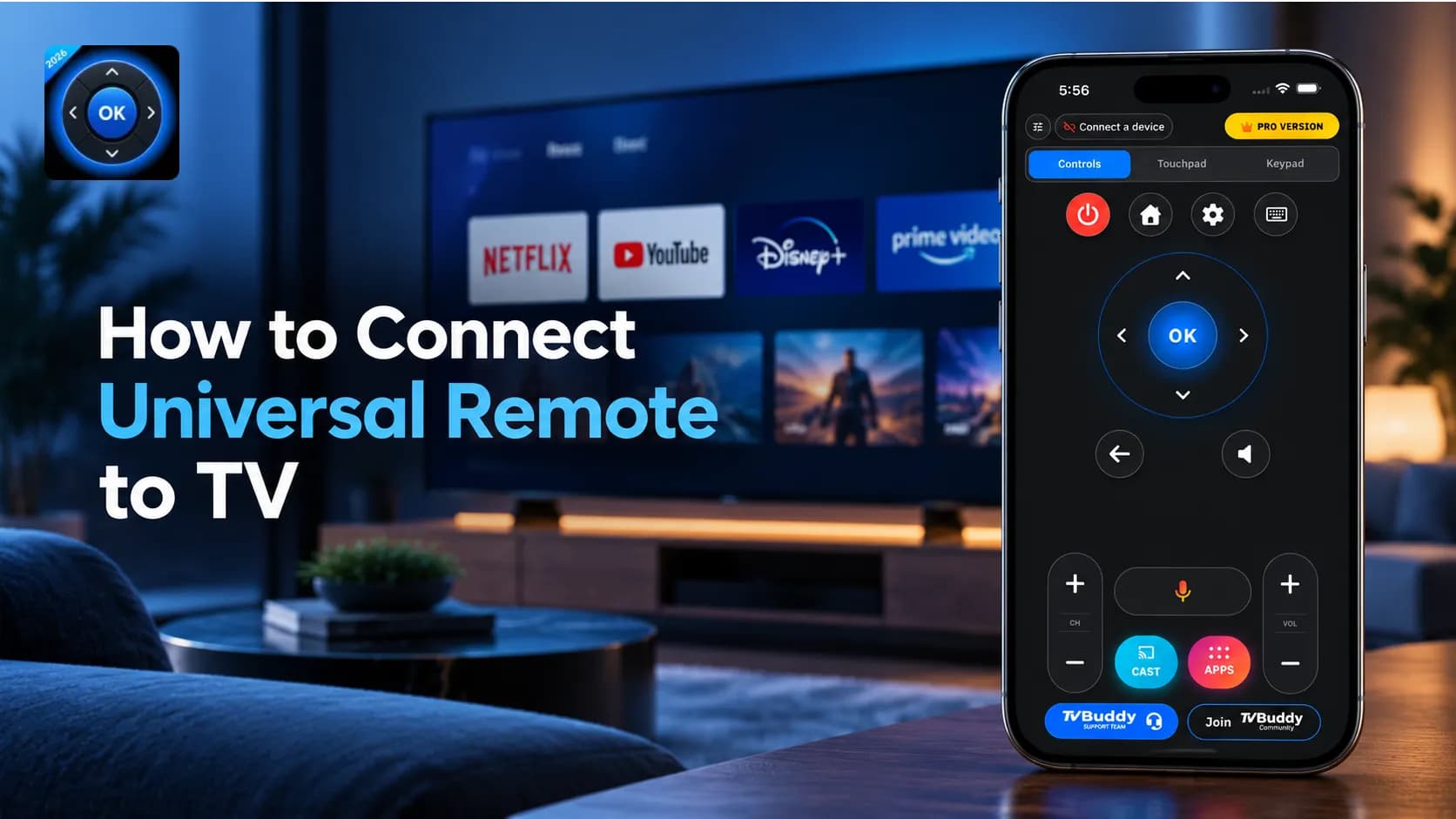
Step 5: Enjoy TVBuddy's Remote Features
Alongside media casting, TVBuddy offers supported remote-control functions such as directional navigation, menu controls, and media playback.
Additional controls are available through TVBuddy Pro, depending on your television.
Why choose TVBuddy? It combines personal media casting and compatible smart TV controls without requiring a separate physical remote.
Note: Available casting and remote features vary by television model and operating system.
Method 2: Connect Android to TV Using an HDMI Cable
An HDMI cable provides a wired alternative if you don't have a stable Wi-Fi connection or prefer to connect your phone directly to a television.
Unlike wireless casting, HDMI transfers a video signal through a physical cable. However, your Android smartphone must support external display output.
What You'll Need
- An Android phone that supports wired video output.
- A compatible USB-C-to-HDMI adapter or cable.
- An HDMI cable if your adapter requires one.
- A television with an HDMI input.
How to Connect Mobile Phone With TV Using HDMI
- Check whether your smartphone supports USB-C video output.
- Connect the USB-C-to-HDMI adapter to your Android phone.
- Plug the HDMI cable into the adapter.
- Connect the other end to your television's HDMI port.
- Turn on the television and select the corresponding HDMI input.
- Approve screen mirroring or select the display mode if prompted.
Your smartphone's display should appear on the TV if the connection is supported.
Some compatible Samsung devices may offer Samsung DeX instead of standard screen mirroring.
Samsung's official USB-C-to-HDMI connection guide explains compatible devices and connection requirements.
Important: Not all Android phones support HDMI output through USB-C. An adapter cannot add video-output support to an incompatible phone. Certain copyright-protected streaming content may also be restricted.
When Should You Use HDMI?
HDMI is particularly useful when Wi-Fi is unavailable, wireless connections are unstable, or you want a direct display connection for supported content.
It does not require TVBuddy or a Wi-Fi network.
Method 3: Use Android's Built-In Screen Mirroring
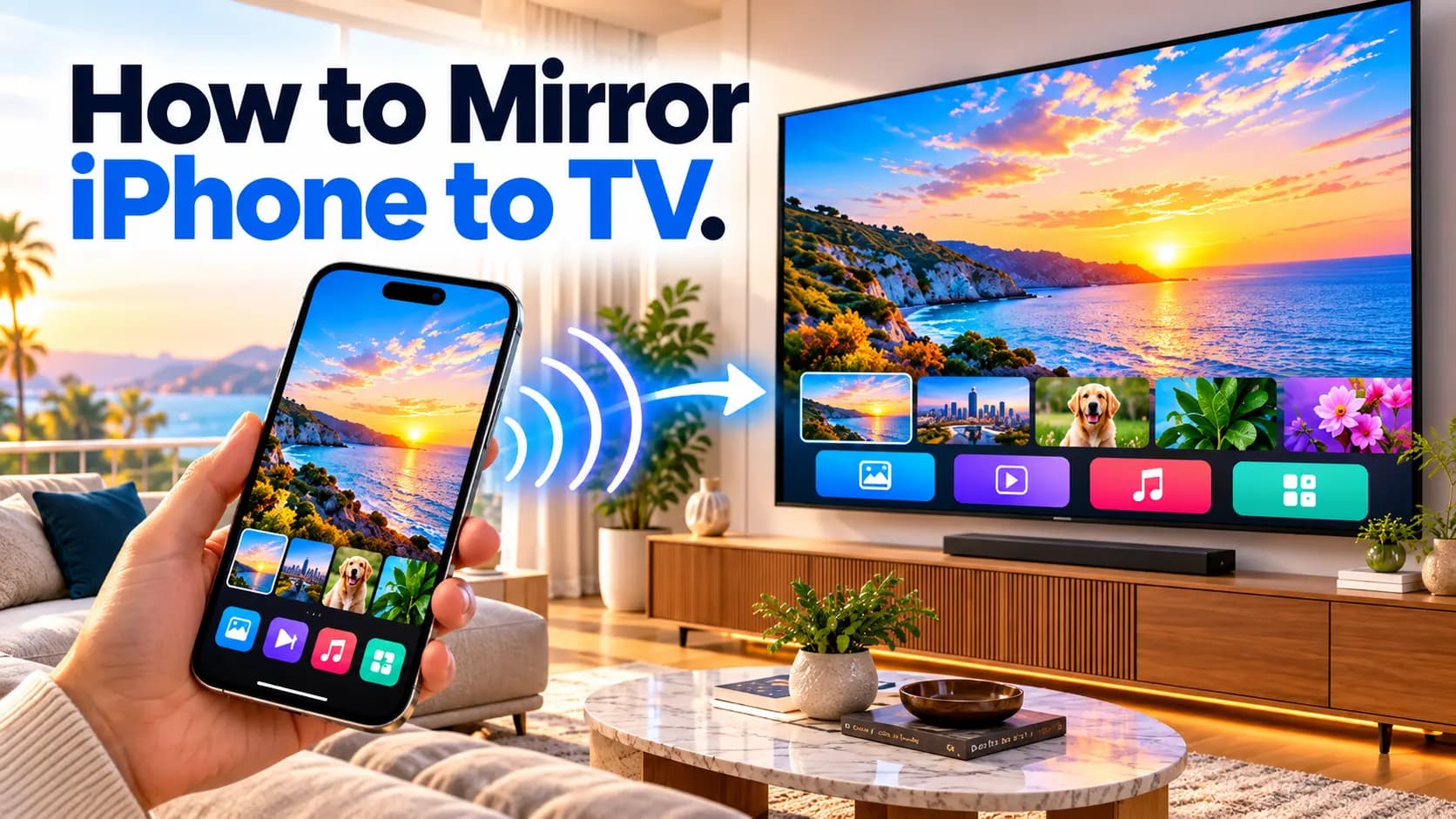
Some Android smartphones include built-in screen-sharing features that let you display your mobile screen on a compatible television.
Depending on your phone, the feature may be called Screen Cast, Screen Mirroring, Wireless Display, or Smart View.
How to Mirror Android to Smart TV
- Connect your smartphone and compatible television to the same Wi-Fi network.
- Open your Android phone's Quick Settings panel.
- Look for Cast, Screen Mirroring, or Smart View.
- Select your compatible television.
- Approve the connection request if prompted.
- Wait for your phone screen to appear on the television.
For Samsung Galaxy users, Smart View is available on supported devices. Samsung provides more details in its official Smart View instructions.
When should you use screen mirroring? Choose this method when you want to display your entire phone screen, rather than cast individual media files.
Not every Android phone and TV support the same screen mirroring technology.
Which Android-to-TV Connection Method Is Best?
| Method | Best For | Wi-Fi Required? |
|---|---|---|
| TVBuddy | Personal media casting and smart TV controls | Yes |
| HDMI Cable | Wired display connection | No |
| Built-in Screen Mirroring | Sharing the entire phone screen | Usually requires a compatible wireless connection |
TVBuddy is a convenient choice for casting supported photos, videos, and music while managing compatible TV controls.
HDMI is useful when wireless connectivity isn't practical, while built-in screen mirroring is designed for showing your smartphone's display.
How to Fix Android Casting Problems
If you cannot connect mobile to TV successfully, try these solutions.
Check Your Network
For wireless casting, confirm that your smartphone and smart TV are connected to the same local Wi-Fi network.
Restart Both Devices
Restart your phone and television to resolve temporary connection issues.
Check Device Compatibility
Verify that your TV supports the selected casting method. For HDMI, confirm that your Android phone supports wired video output.
Update Your Software
Install available updates for TVBuddy, your smartphone, and your television.
Check Your HDMI Connection
If you're using HDMI, verify the adapter, cable, and selected TV input. Try another HDMI port if necessary.
Review Permissions and VPN Settings
Grant required device discovery permissions. Disable VPN connections temporarily if they interfere with wireless discovery.
Final Thoughts: Connect Your Android Phone to a Smart TV
Whether you want to watch personal videos, share family photos, or enjoy music on a bigger display, there are several ways to cast to TV from Android.
For everyday wireless media sharing, TVBuddy offers a convenient combination of supported casting and smart TV controls.
If Wi-Fi isn't available, an HDMI connection may work with a compatible smartphone. Built-in screen mirroring offers another option for displaying your phone's screen.
Ready to enjoy your media on a bigger screen? Try TVBuddy for free.
TVBuddy compatibility and available features depend on your television model, operating system, and phone.
Frequently asked questions
Quick answers to common questions.