How to Connect a Universal Remote to a TV: 2 Easy Methods
Learn how to connect a universal remote to your TV using setup codes or a mobile app. Easy instructions for Android, iPhone, and smart TVs.
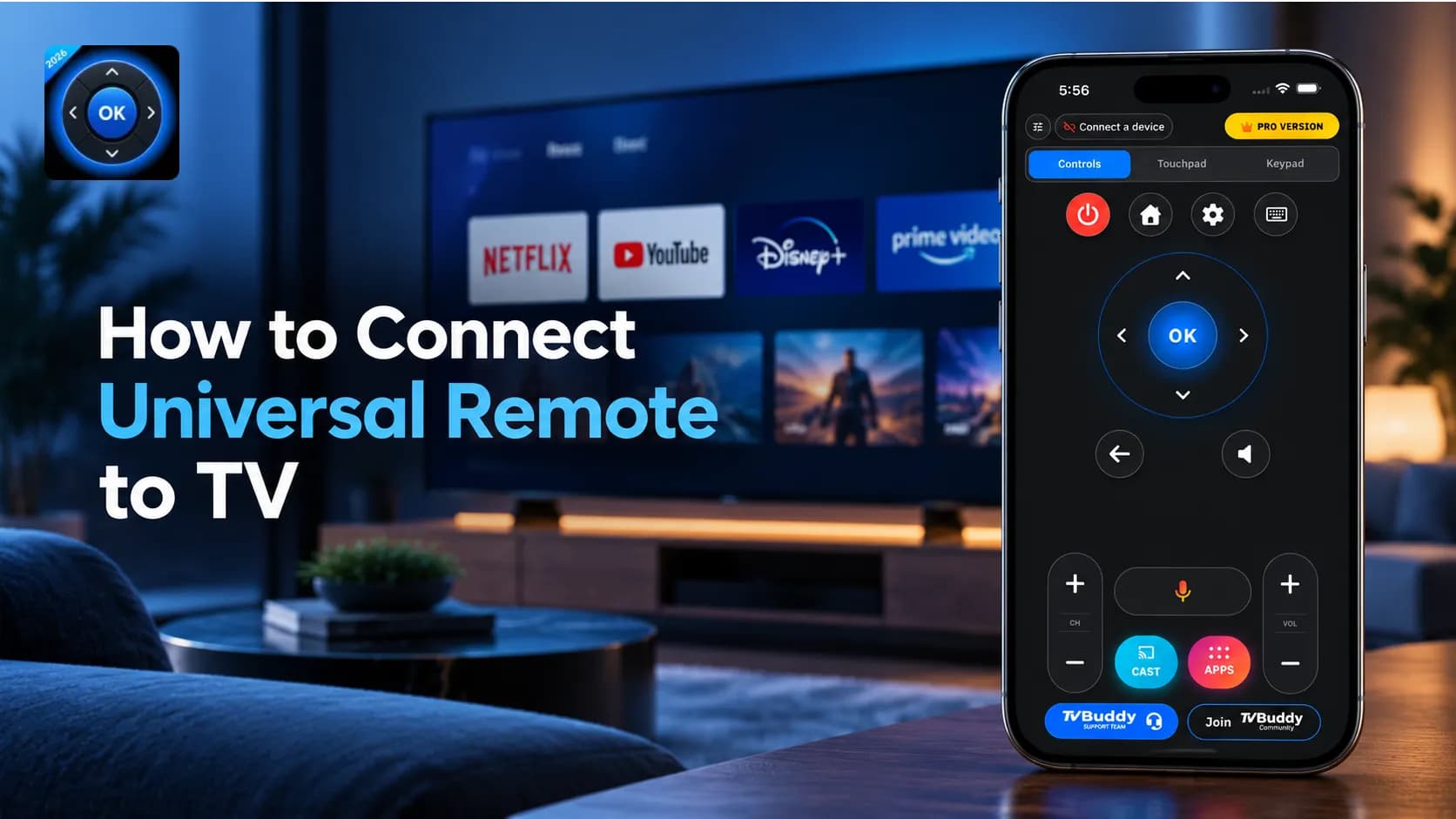
Need to connect a universal remote to your TV? Whether you've lost your original remote, purchased a replacement, or want to control your television using your smartphone, setting up a universal remote can be straightforward.
There are two main methods: program a physical universal remote using TV brand codes, or connect a compatible smart TV using a universal remote app over Wi-Fi.
This guide explains both methods, including Android and iPhone setup, supported TVs, and solutions to common connection problems.
Method 1: How to Connect a Physical Universal Remote to a TV
A traditional universal remote can control compatible televisions from different manufacturers. Most programmable models use infrared (IR) signals and require a setup code corresponding to your TV brand.
Step 1: Turn On Your TV
Use the television's physical power button to turn it on. Make sure the universal remote has working batteries and that nothing blocks the TV's infrared receiver.
Step 2: Activate Programming Mode
Press and hold the Setup button on your universal remote until its indicator light changes or stays illuminated.
Depending on your remote model, you might need to press the TV button or a different combination of buttons to enter programming mode.
Step 3: Enter Your TV Brand Code
Find the programming code for your television brand in the remote manufacturer's instructions.
Enter the code using the universal remote's number buttons. Codes differ by remote manufacturer and model, even for televisions from the same brand.
Step 4: Test the Connection
Point your universal remote toward the TV and try changing the volume, opening the menu, or turning the television off and on.
If the buttons work correctly, the setup is complete. If not, try another code listed for your brand.
What If You Don't Have the TV Code?
Some programmable remotes provide an automatic code-search function that cycles through supported codes.
The exact button combination varies by remote, so consult its manual rather than assuming every universal remote follows the same procedure.
For additional manufacturer guidance, see Samsung's universal remote setup instructions.
Tip: If you own a compatible smart TV, a smartphone-based remote may be a more convenient option because it doesn't require traditional infrared programming codes.
Method 2: How to Connect a TV Remote Control Mobile App
A TV remote control mobile app lets you operate compatible smart TVs directly from your smartphone.
Unlike many traditional universal remotes, a Wi-Fi-based universal remote app communicates through your local network, without needing an infrared blaster or direct line of sight.
For example, TVBuddy's Universal TV Remote App allows users to connect to supported televisions and access remote-control features through their phones.
Step 1: Download a Universal Remote App
Install a compatible TV remote control app on your Android phone or iPhone.
TVBuddy is available on Google Play for Android and on the App Store for iPhone. The app is free to download, with optional paid features.
Step 2: Connect Your Phone and TV to the Same Wi-Fi
Make sure your smartphone and compatible smart TV are connected to the same local Wi-Fi network.
Your television should already be connected to Wi-Fi and fully powered on. Disable your phone's VPN if it interferes with device discovery.
Step 3: Open the TV Remote App
Launch TVBuddy and allow the device-discovery or local-network permissions it requests.
The app will scan your network for compatible televisions.
Step 4: Select Your Television
When your TV appears in the device list, tap its name to begin connecting.
Some models require you to approve a request on the television or enter an on-screen pairing code. Follow the instructions shown by your TV and app.
Step 5: Start Controlling Your TV
Once connected, test the available navigation buttons and supported media controls.
TVBuddy's free version includes basic navigation and other supported functions. Advanced controls such as touchpad navigation, keypad input, and additional TV functions are available through Pro, where supported.
You can explore the available options in TVBuddy's remote control features.
How to Use a Universal Remote Control App for Android
If you're searching for a universal remote control app for Android, a Wi-Fi-based solution is useful when your smartphone doesn't have an infrared blaster.
To use TVBuddy on Android:
- Install TVBuddy from Google Play.
- Connect your Android phone and compatible smart TV to the same Wi-Fi network.
- Open the app and allow the required connection permissions.
- Select your television from the detected devices.
- Complete any requested pairing or approval.
- Use the available remote controls to navigate your TV.
Android smartphones and Android TVs are not the same thing. An Android phone can also control certain compatible non-Android smart TVs, depending on the remote app and television platform.
For additional information about wireless phone remotes, refer to Google's official Android TV remote instructions.
How to Use an iPhone as a Universal TV Remote
iPhone users can also replace many everyday physical remote functions with a compatible smartphone application.
A universal TV remote app such as TVBuddy connects over Wi-Fi, so an infrared transmitter isn't necessary for supported devices.
Install TVBuddy on your iPhone, join the same Wi-Fi network as your television, select your TV from the app, and follow any pairing instructions.
After connection, you can navigate TV menus and use supported controls without repeatedly searching for the physical remote.
Some TV models still require the original remote for initial network setup, connection approval, or certain device settings.
Which TVs Work With Universal Remote Apps?
Compatibility depends on the TV brand, model, operating system, and the particular application you're using.
TVBuddy is designed to work with selected smart TVs and streaming platforms, including:
- Samsung smart TVs running compatible Tizen versions
- LG smart TVs using supported webOS versions
- Roku TV devices
- Android TV and Google TV devices
- Selected TCL, Sony, Hisense, and other compatible televisions
- Supported Amazon Fire TV devices
Not every model offers the same controls. A feature available on one television may not work on another.
For older televisions that lack Wi-Fi or compatible network-control capabilities, a traditional infrared universal remote may be necessary.
Important: Check your television's model and operating system before relying on a phone universal remote app as your only controller.
Why Use a Universal TV Remote App Instead of a Physical Remote?
Many people now prefer TV remote apps because a smartphone can provide more than basic channel navigation.
1. Your Phone Can Replace Everyday Remote Functions
A compatible TV remote control app puts navigation and supported playback controls on a device you already carry.
This is especially convenient when the physical remote is lost or its batteries are dead.
2. No Infrared Blaster Is Required
For supported Wi-Fi-connected televisions, you can use your phone as a remote without installing additional infrared hardware.
3. Additional Controls May Be Available
Depending on your television and the app, you may have access to touchpad navigation, text input, voice features, app shortcuts, and media casting.
TVBuddy combines basic remote functionality with optional advanced features, making it useful for users who want more control from their smartphones.
4. One App Can Support Multiple Compatible TVs
A universal TV app remote can be convenient when you have compatible televisions in different rooms or use multiple smart TV platforms.
Instead of switching between several physical controllers, you may be able to select the television you want to control from one mobile interface.
Troubleshooting: Why Won't My Universal Remote Connect?
If your remote isn't working, first identify whether you're using a physical controller or a smartphone app.
Physical Universal Remote Problems
- Incorrect programming code: Check the remote manufacturer's code list and try another code for your TV brand.
- Low batteries: Replace the batteries and repeat the programming process.
- Blocked infrared signal: Make sure the remote is pointed toward the television's receiver.
- Unsupported model: Confirm that your remote can control your specific television.
TV Remote Mobile App Problems
- TV not detected: Confirm that the phone and TV are connected to the same local network.
- VPN or guest network interference: Turn off your VPN and avoid guest networks that isolate connected devices.
- Television in standby mode: Turn the TV fully on and scan again.
- Missing permissions: Check that the application has permission to discover devices on your network.
- Pairing not approved: Look for an approval request or pairing code on the TV screen.
- Outdated software: Update the app and your television's software, then restart the devices if necessary.
If the television isn't connected to Wi-Fi and you cannot access its network settings, you may first need its physical controls or another supported setup method.
If your original remote has stopped responding, see our guide on how to fix a TV remote that is not working.
Final Thoughts: Connect Your Universal Remote the Easy Way
Learning how to connect a universal remote to a TV doesn't have to be complicated.
If you have a traditional physical remote, follow its programming instructions and use the appropriate TV brand code.
If your television supports network-based control, a universal remote app provides another option. You can use your smartphone for everyday navigation, supported playback controls, and additional features without relying on a traditional infrared remote.
Ready to turn your phone into a TV remote? Try TVBuddy for free and discover an easier way to control compatible smart TVs from your Android phone or iPhone.
TVBuddy is an independent application and is not affiliated with or endorsed by television manufacturers. Features and compatibility vary by TV brand, model, operating system, and subscription plan.
Frequently asked questions
Quick answers to common questions.