How to Mirror iPhone to TV: Easy Wireless and Wired Methods
Learn how to mirror iPhone to TV using AirPlay, HDMI, and casting methods. Follow simple steps to connect your iPhone to compatible smart TVs.
Want to show your iPhone screen on a bigger display? Learning how to mirror iPhone to TV is useful for watching videos, sharing photos, giving presentations, or viewing content with family.
The easiest method depends on your TV. If it supports AirPlay, you can mirror your iPhone wirelessly. If not, you can use a compatible casting option or connect your iPhone with an HDMI cable.
How to Mirror iPhone to TV Using AirPlay
For an Apple TV or AirPlay-compatible smart TV, AirPlay is usually the easiest option.
Make sure your iPhone and TV are connected to the same Wi-Fi network, then:
- Turn on your TV and enable AirPlay if required.
- Open Control Center on your iPhone.
- Tap Screen Mirroring.
- Select your TV.
- Enter the passcode shown on the TV if prompted.
Your iPhone screen should now appear on the television.
To stop mirroring, open Control Center again, tap Screen Mirroring, and choose Stop Mirroring.
For official instructions, see Apple’s AirPlay and screen mirroring guide.
How to Mirror iPhone to TV Without Apple TV
You do not need an Apple TV device if your smart TV already supports AirPlay.
Many modern smart TVs include AirPlay directly, so you can follow the same Screen Mirroring steps from your iPhone.
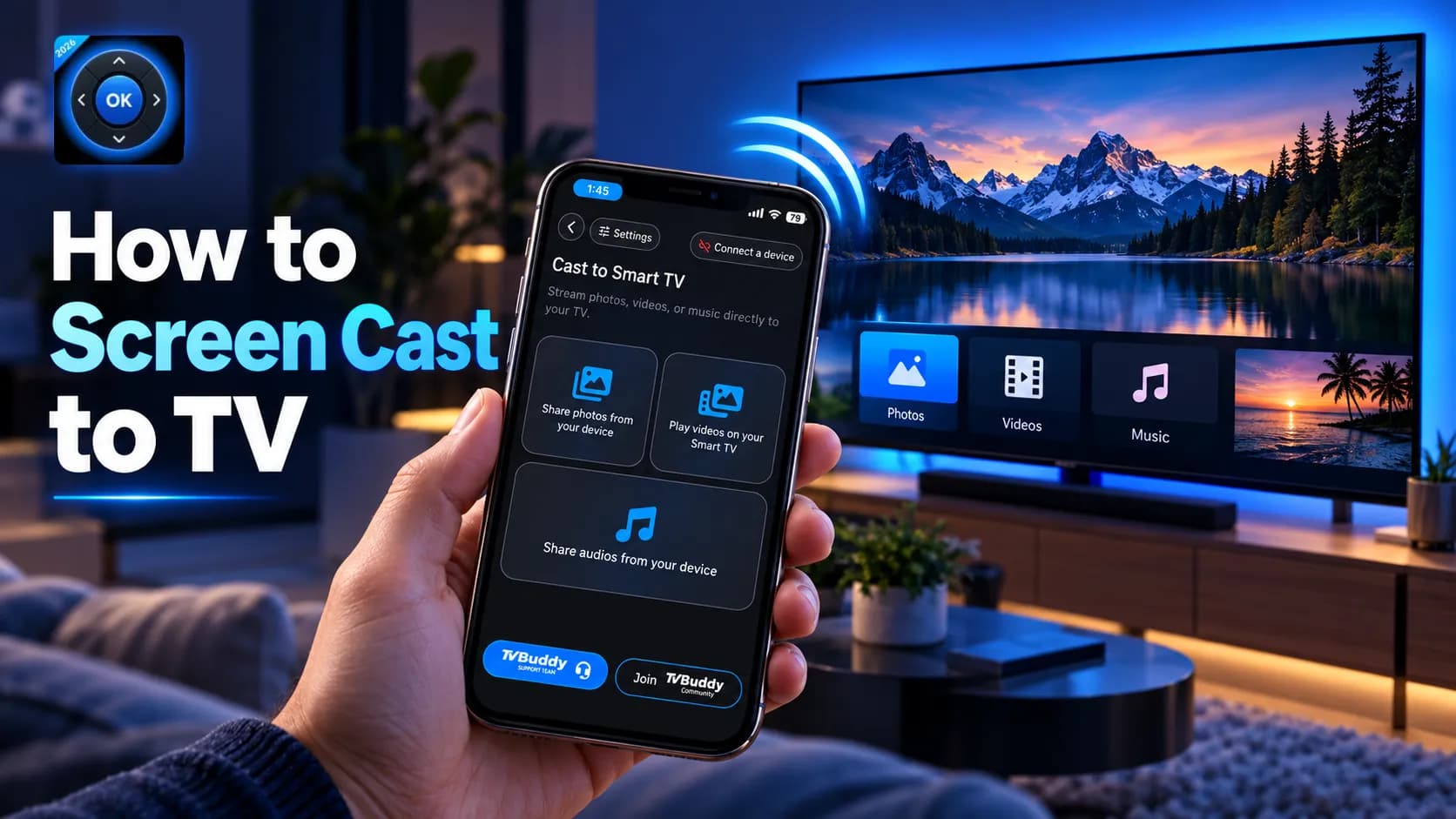
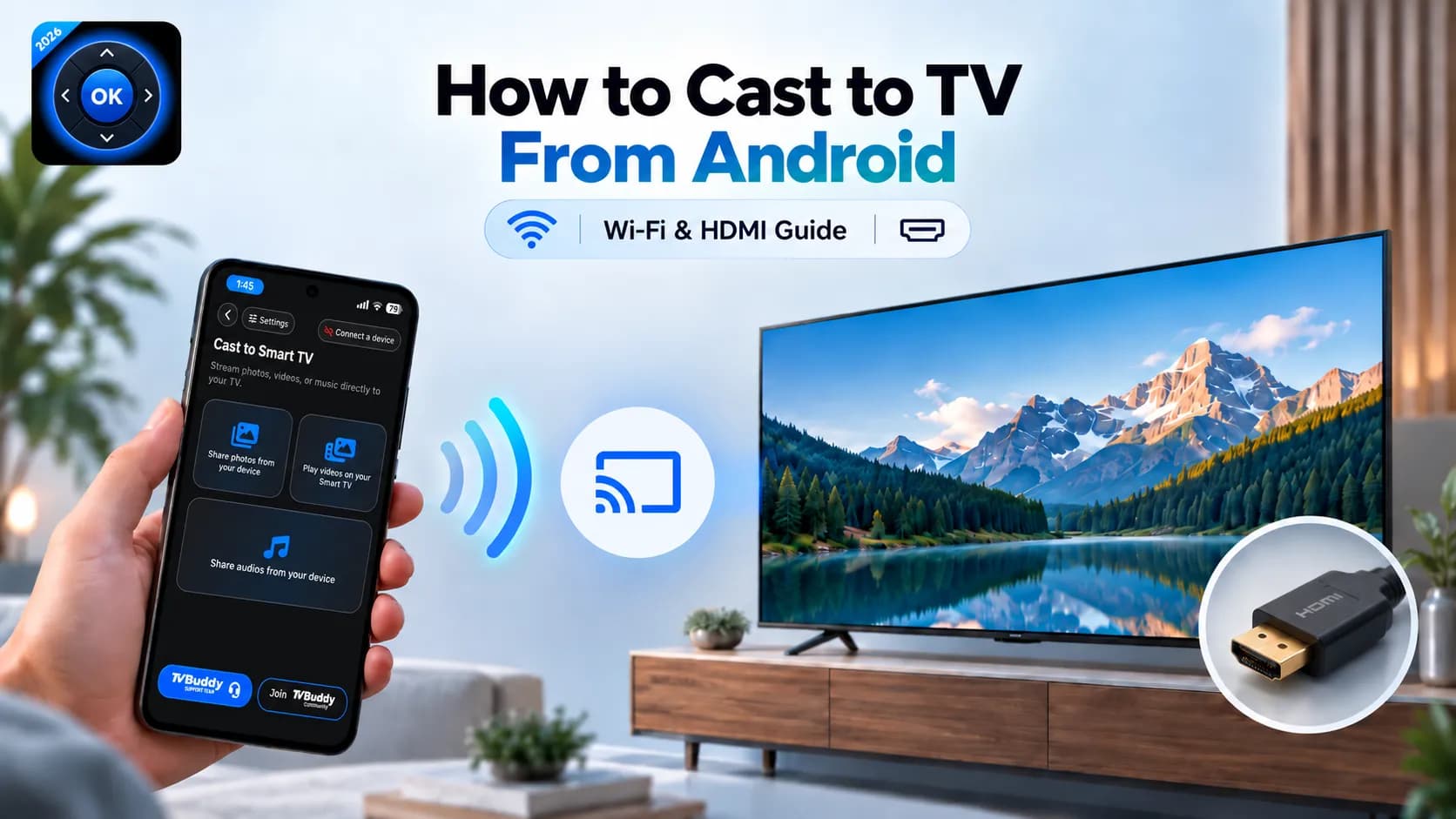
If your TV does not support AirPlay, another option is to cast supported photos, videos, or music from your phone.
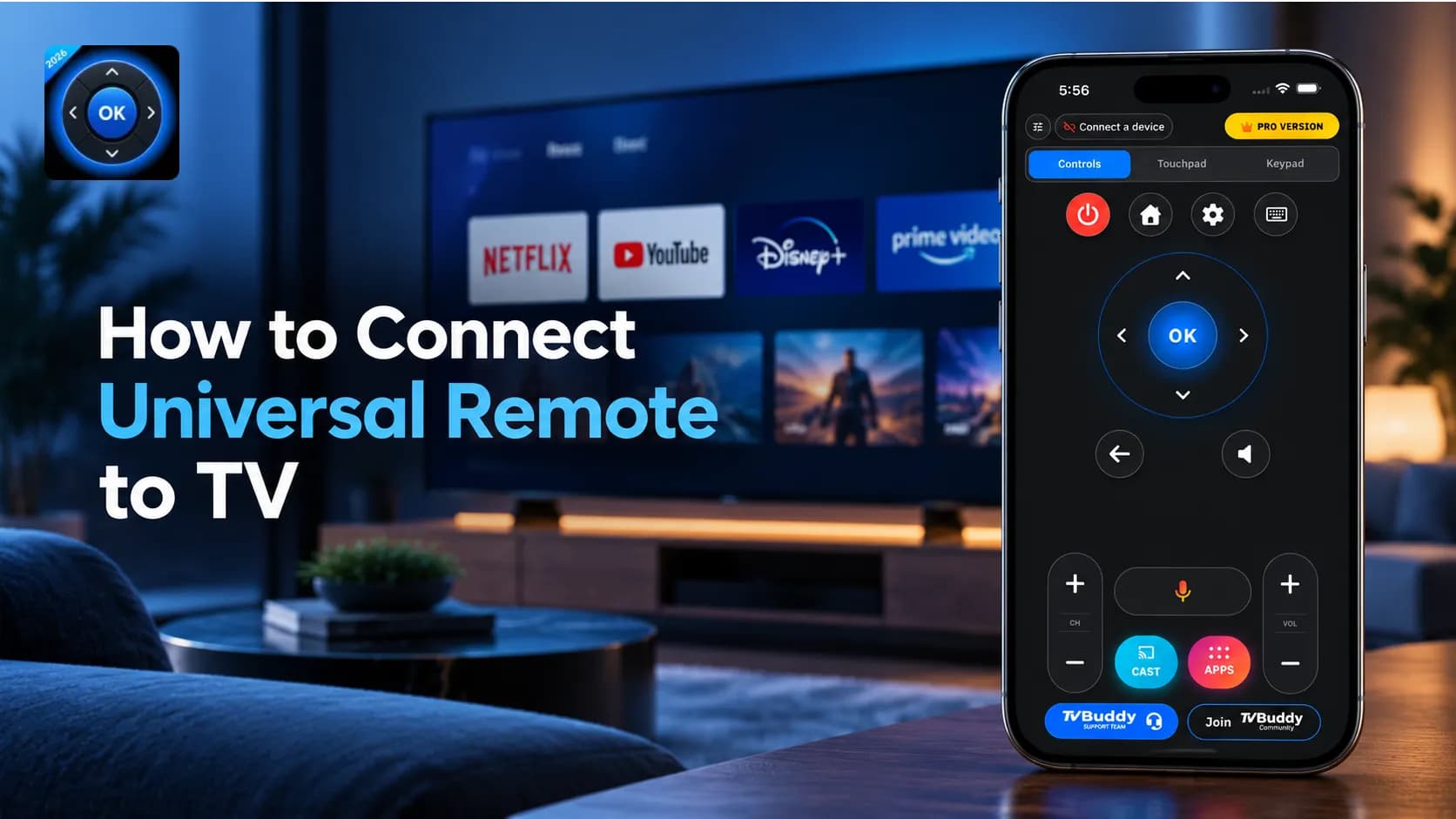
For example, TVBuddy connects your phone to compatible smart TVs over the same Wi-Fi network. It can be used for supported media casting and TV controls, depending on your television model and operating system.
This is useful for people who want to control their TV and send compatible media from their phone without relying on a physical remote.
Mirror iPhone to TV With an HDMI Cable
If wireless mirroring is unavailable or unstable, a wired connection is a reliable alternative.
Depending on your iPhone model, you may need:
- A USB-C to HDMI cable or adapter
- A Lightning Digital AV Adapter with HDMI
Connect your iPhone to the TV, then select the correct HDMI input.
Apple confirms that compatible iPhones can connect to external displays using the appropriate cable or adapter. See Apple’s wired display guide.
How to Cast iPhone Content to Google TV
If you use Google TV or a compatible Google Cast device, supported iPhone apps can send content directly to your TV.
Make sure both devices are on the same Wi-Fi network, open a Cast-enabled app, tap the Cast icon, and select your TV.
This is different from full-screen mirroring because only the selected content is sent to the television.
What to Do If iPhone Screen Mirroring Is Not Working
If your TV does not appear under Screen Mirroring, try these checks:
- Confirm that your iPhone and TV use the same Wi-Fi network.
- Make sure AirPlay is enabled on the TV.
- Restart both devices.
- Update your iPhone and TV software.
- Check that your TV supports AirPlay.
These simple steps solve many common connection problems.
Control and Cast to Your TV From Your Phone
If you also want phone-based TV controls and supported media casting, you can use TVBuddy with compatible televisions.
Frequently asked questions
Quick answers to common questions.