How to Fix TV Remote Not Working: 7 Things to Try
Learn how to fix TV remote not working with battery checks, resets, pairing tips, and signal tests. Discover a phone remote backup for compatible TVs.
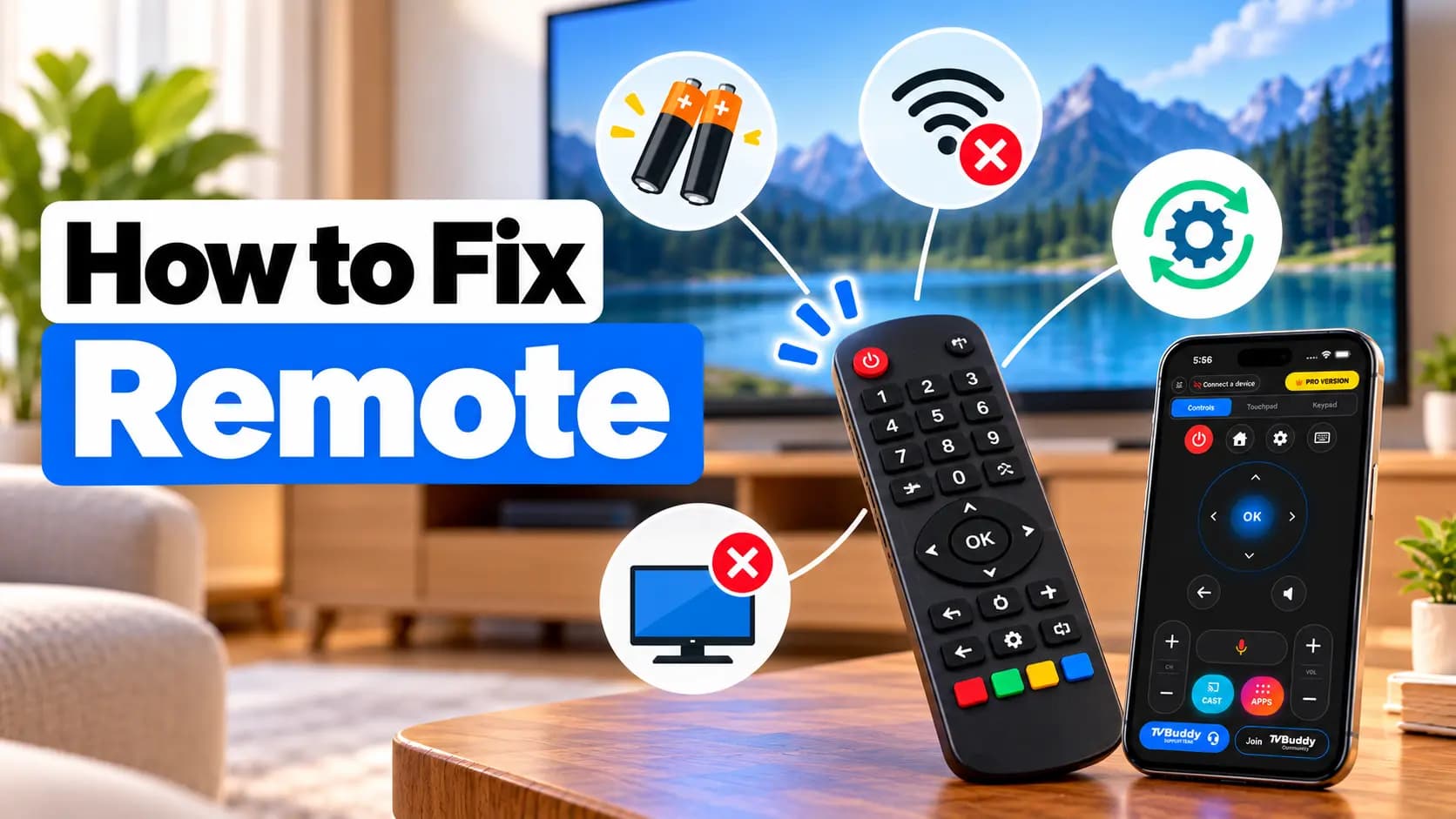
Your TV remote stops responding just as you sit down to watch something. Before buying a replacement, identify whether the problem is the remote, the television, or their connection.
To fix a TV remote that is not working, check its batteries, test the TV’s physical buttons, restart the television, and reset or re-pair the remote. Infrared remotes also need an unobstructed signal path.
1. Replace the Batteries or Recharge the Remote
Install a fresh pair of the correct batteries, matching the positive and negative markings. Replace both together rather than mixing old and new batteries. For rechargeable remotes, follow the manufacturer’s charging instructions instead.
2. Test the TV’s Physical Buttons
Press the television’s own power button. Its location varies by model.
If the TV responds, focus on the remote or its connection. If it does not, check the power connection and troubleshoot the TV before buying another remote.
3. Restart the TV and Reset the Remote
Unplug the TV, wait about two minutes, then reconnect it and test again. Follow your model’s instructions if they specify a different procedure.
Reset the remote separately. For example, Samsung recommends removing the batteries and holding Power for eight seconds on its applicable battery-powered remotes. Rechargeable and smart remotes can require different procedures. Do not assume one reset sequence works for every remote.
4. Check the Infrared Signal and Clear Obstructions
Move objects blocking the TV’s remote sensor and point the remote directly toward it. A soundbar or decoration positioned in front of the receiver could obstruct the signal.
For an infrared remote, open a camera app, point the remote’s transmitter at the lens, and press Power. A flashing light can indicate that it is transmitting.
However, no visible flash does not automatically mean the remote is broken: some cameras filter infrared. Sony’s infrared testing instructions recommend checking the camera with a known-working IR remote first. This test does not verify Bluetooth pairing.
5. Re-Pair a Smart Remote
A smart remote may need to reconnect to the TV. Use instructions for your exact model rather than trying random button combinations.
For compatible Samsung Smart Remotes, Samsung’s troubleshooting guide describes holding Return and Play/Pause together for at least five seconds near the TV. Other brands and models use different pairing procedures.
6. Check for Stuck Buttons
Remove the batteries, then press and release each button several times. Reinsert the batteries and test again. A stuck button can interfere with other commands.
If the problem persists, contact the manufacturer to determine whether the remote or TV needs service.
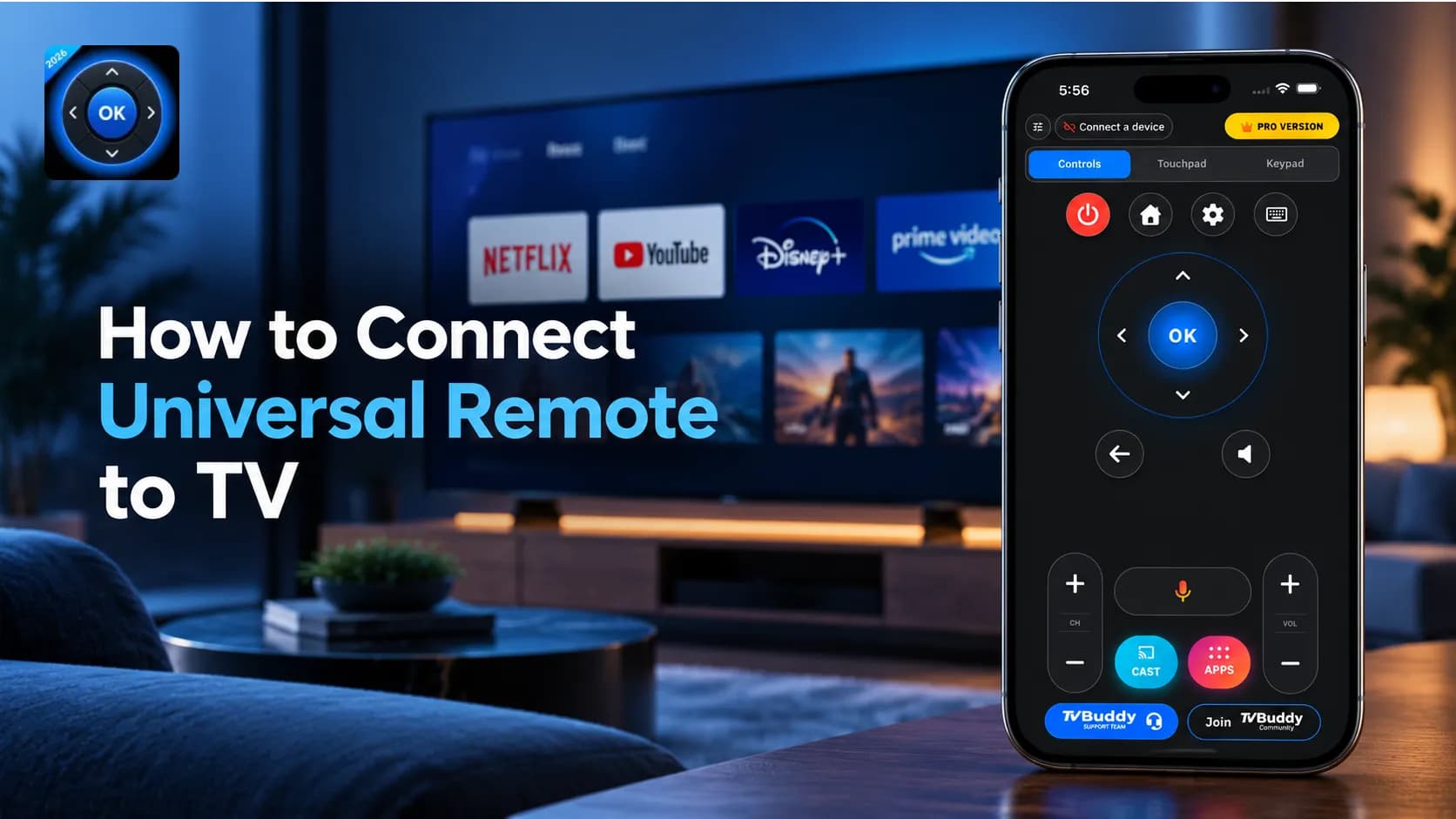
7. Use Your Phone as a Backup Remote
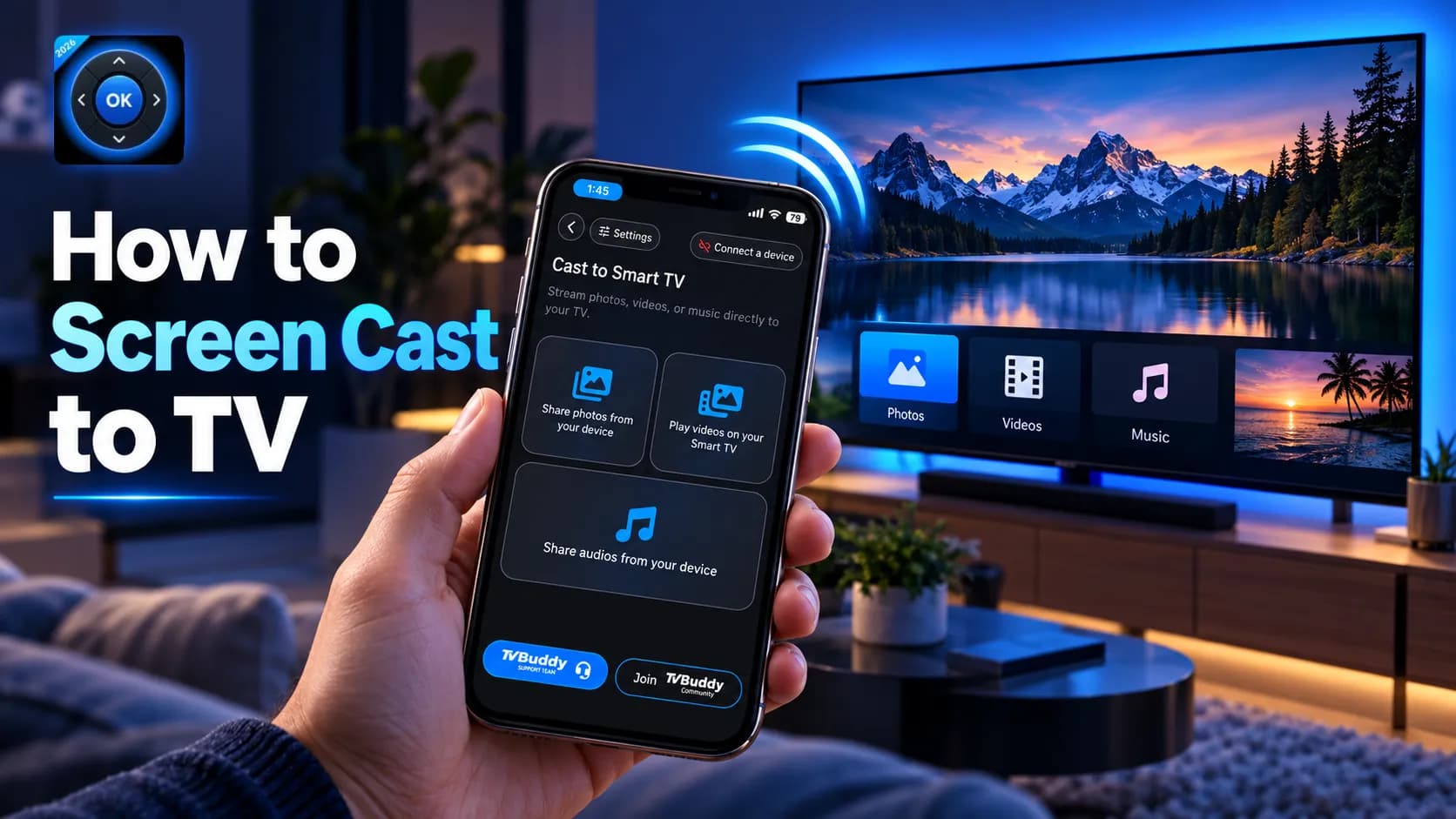
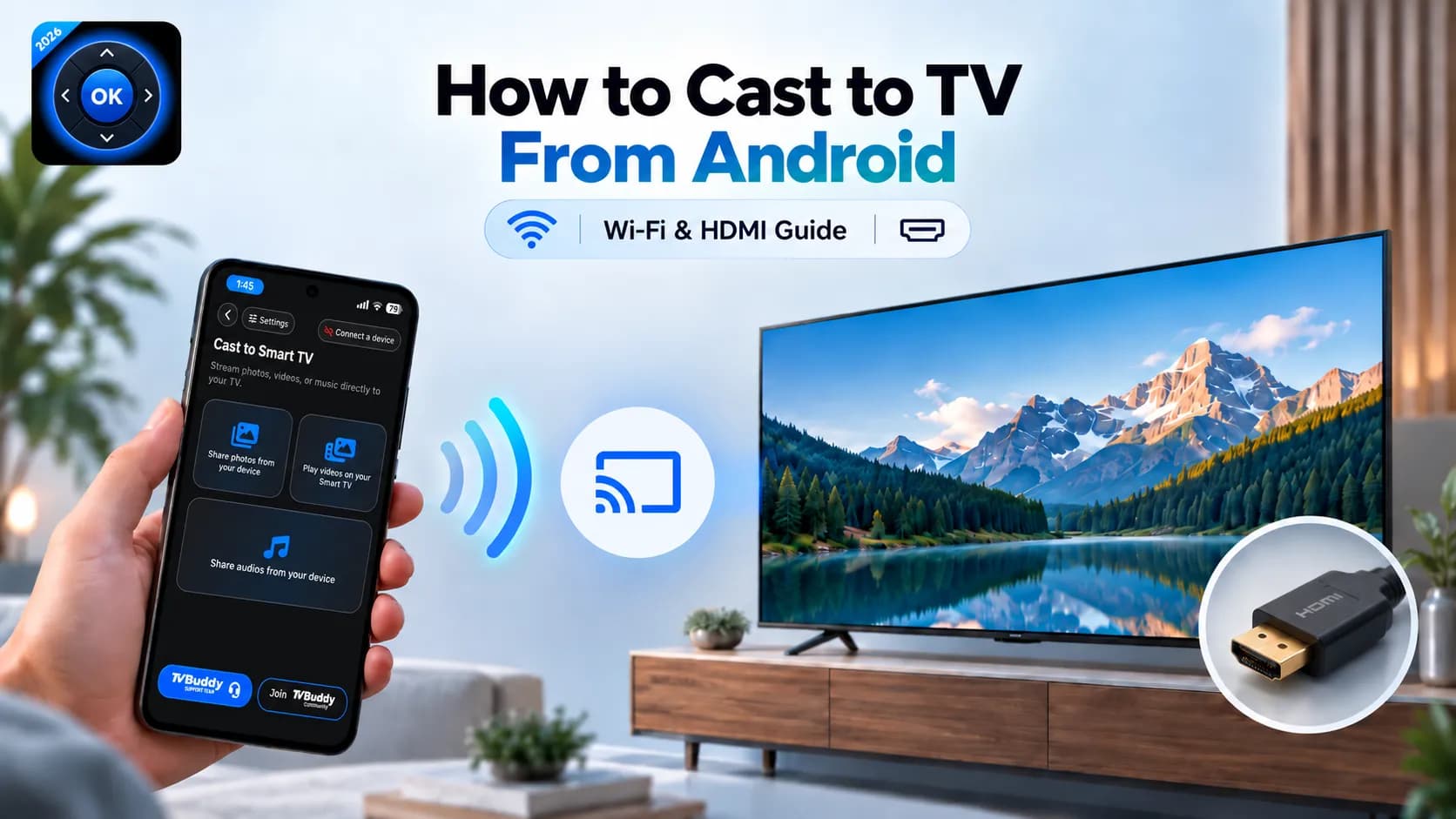
A compatible smart TV can also work with the TVBuddy universal TV remote app.
Turn the TV on, connect it and your phone to the same Wi-Fi network, open TVBuddy, and select your television. Approve any connection request shown on the TV.
Important: Some TVs require on-screen approval that may need a working remote. An app may not solve that setup problem immediately. Compatibility and available controls vary by TV model and operating system.
Frequently asked questions
Quick answers to common questions.